Accept in-person contactless payments – from physical debit and credit cards to other digital wallets2

Cash Flow
Tap to Pay
Learn more about how to apply for Tap to Pay
Accept in-person, contactless payments, from physical debit and credit cards to other digital wallets. It’s simple, secure and no additional hardware is needed. Available on iPhone and Android devices. Powered by Stripe.
What is Tap to Pay?
Take payments in more places
Easy set up and account management³
No additional hardware or terminals needed. Securely view payments and payouts all in one place.

Instant payment confirmation
Get payment confirmation in real time.
Tap to Pay on iPhone₄
Accept contactless payments on your iPhone. No terminal needed. Easy, secure and private.
Do business in more places: With Tap to Pay on iPhone, you can accept all types of in-person, contactless payments on your iPhone so you can reach more customers, take payments on the go and explore new ways of working to help reduce queues.
Easy to set up and manage: No additional card readers and terminals, all you need is your iPhone and the HSBC UK Business Banking app.
Privacy and security built-in5: Tap to Pay on iPhone uses the built-in security and privacy features of iPhone to help protect your business and customer data.
PIN transaction protection: Tap to Pay on iPhone is designed to prevent all phone, video, screenshot, and screen-recording features on the merchant’s iPhone from capturing a customer’s card number or PIN information.
Accessibility features built-in: For customers needing visual or other assistance, accessibility options are built into iPhone that help make Tap to Pay on iPhone easy to use.
How to use Tap to Pay on iPhone⁴ for your business
For Apple Pay and other digital wallets
1. Open your HSBC UK Business Banking app on your iPhone, go to 'Accept a payment’ then 'Tap to Pay on iPhone’ and enter the purchase amount. 2. Present your iPhone to the customer. 3. Your customer holds their device over the contactless symbol at the top of your iPhone for a few seconds. 4. When you see the 'Done’ tick, the card read is complete and the transaction is being processed.
For contactless card payments
1. Open your HSBC UK Business Banking app on your iPhone, go to 'Accept a payment’ then 'Tap to Pay on iPhone’ and enter the purchase amount. 2. Present your iPhone to the customer. 3. Your customer holds their card horizontally or their device over the contactless symbol at the top of your iPhone for a few seconds. 4. When you see the 'Done’ tick, the card read is complete and the transaction is being processed.
For PIN entry
1.Open your HSBC UK Business Banking app on your iPhone, go to 'Accept a payment' then 'Tap to Pay on iPhone' and enter the purchase amount. 2. Present your iPhone to the customer. 3. Your customer holds their card horizontally or their device over the contactless symbol at the top of your iPhone for a few seconds. 4. Your customer will see the option for PIN entry if payment is over the contactless card limit or for other security reasons. Accessibility options are also available on screen. 5. Customer enters their PIN on your device. 6. When you see the 'Done' tick, the card read is complete and the transaction is being processed.
Tap to Pay on Android₆
Tap to Pay on Android uses integrated contactless technology, so you can receive payments in more places with compatible NFC equipped Android devices6. It gives you instant payment confirmation in real time, plus built-in PIN protection. When a PIN is required, background apps can’t access sensors that might reveal any part of it, and the PIN and card numbers aren’t stored.
How to use Tap to Pay on Android₆ for your business
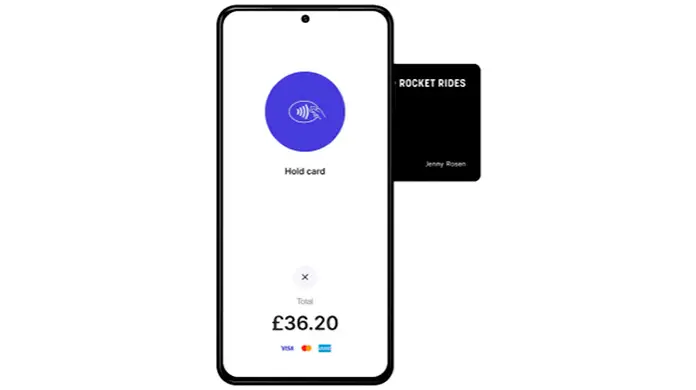
Taking payments with contactless card or a digital wallet
Taking payments with Tap to Pay on Android is quick and straightforward, whether your customer is using a contactless card or a digital wallet. The below outlines the four simple steps to take payment:
- Open your HSBC UK Business Banking app on your device, go to ‘Accept a payment’ then ‘Tap to Pay on Android’ and enter the purchase amount.
- Present your device to the customer.
- Ask your customer to hold their card or digital wallet at the back of the device.
- When you see the ‘Done’ checkmark, the transaction is complete.
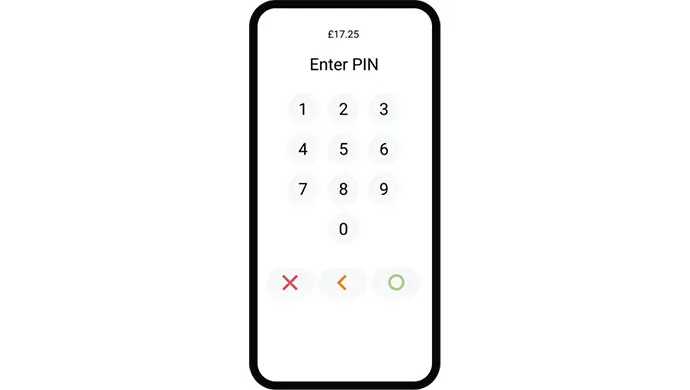
Taking payments for PIN entry
A PIN entry is simple when it’s required. The steps below explain how to use PIN entry:
- Open your HSBC UK Business Banking app on your device, go to Accept a payment’ then Tap to Pay on Android’ and enter the purchase amount.
- Present your device to the customer.
- Ask your customer to hold their card or digital wallet at the back of the device.
- Your customer will see the option for PIN entry if payment is over the contactless card limit or for other security reasons.
- Customer enters their PIN on your device.
- When you see the payment success page, the transaction is complete.
If you use an accessibility feature or app, this needs to be disabled when using PIN entry.
Apply for Tap to Pay₈
To apply for Tap to Pay, log in to the HSBC UK Business Banking app on your iPhone or Android device8.
In the app, go to Products & Services → Accept Customer Payments, then select Tap to Pay to get started.
New to HSBC?
Tap to pay is available to eligible HSBC UK Small Business Banking Account or Business Banking Account customer only.
Apply for a business current account to be able to access Tap to Pay on Android.
Frequently asked questions
Important information
- You’ll need WiFi or mobile data connection when using Tap to Pay.
- Tap to Pay payments can only be accepted in the UK.
- Review terms and conditions before activation.
- Tap to Pay on iPhone requires a supported payment app and the latest version of iOS. Update to the latest version by going to Settings > General > Software Update. Tap Download and Install. Some contactless cards may not be accepted by your payment app. Transaction limits may apply. The Contactless Symbol is a trademark owned by and used with permission of EMVCo, LLC. Tap to Pay on iPhone is not available in all markets. For Tap to Pay on iPhone countries and regions, see https://developer.apple.com/tap-to-pay/regions.
- Tap to Pay on iPhone Encryption and Storage: Encrypted card numbers are temporarily stored on iPhone only for transactions made in Store and Forward mode.
- Tap to Pay on Android – supported devices on Android; runs a current version of Android 11 or above, has an integrated NFC sensor and ARM based processor.
- You can apply for Tap to Pay through the HSBC UK Business Banking app.
- Your application will be processed through Stripe and your account can be managed through Stripe Express.
Tap to Pay transaction fees are 1.4% of the payment value plus £0.05 per transaction.
Apple, iPhone, Touch ID and the Apple logo are trademarks of Apple Inc., registered in the U.S. and other countries. App Store is a service mark of Apple Inc. Apple Pay is a service provided by Apple Payments Services LLC, a subsidiary of Apple Inc. Neither Apple Inc. nor Apple Payments Services LLC is a bank. Any card used in Apple Pay is offered by the card issuer.
Android and Google Play are trademarks of Google Inc.